Loss Prevention on Self Checkout (SCO) - Integration Guide
Last updated by Alex Rochira on March 17th, 2026
Overview
This document provides insight and guidance into the Edgify REST API endpoints for implementing Loss Prevention on self checkout (SCO) or cashier lane POS. Its purpose is to offer an understanding of the functionality, facilitate the estimation of integration efforts and ultimately to guide and assist with coding and development of the integration itself.
Who Should Read This Document?
This document is intended for developers and those responsible for integrating the Edgify solution with POS application software. It can also be helpful to non-technical individuals who wish to understand the relationship and flow between the Edgify Agent, hardware, and customers in a store environment.
Solution Description
This document outlines the process of integrating the Edgify solution with a POS application software via REST APIs. The Edgify Agent is the main active software component in the Edgify solution, with which the POS application will communicate.
The Edgify Agent can be installed on Microsoft Windows OS, where it runs as a service, or on most modern Linux distributions which support Docker, where it runs within a Docker container. See our installation section for more.
Loss Prevention Flows - Video
Below is a short video of a shopper session in which there is a successful scan, a barcode switch and then a scan avoidance event:
False Selections of Barcodeless Items - Video
You can see here an example of a Strongpoint - SCO showcasing the false-selection flow
Prerequisites for integration
- Edgify Agent installed in your development environment
- USB or IP camera feed (which is free for Edgify to control)
- Internet connection allowing outbound communication to dashboard.production.edgify.ai
The API Flow (Start Here)
Make sure you couple the information here with information from our REST APIs page, to ensure you understand the functionality and use cases for each endpoint.
APIs Flow
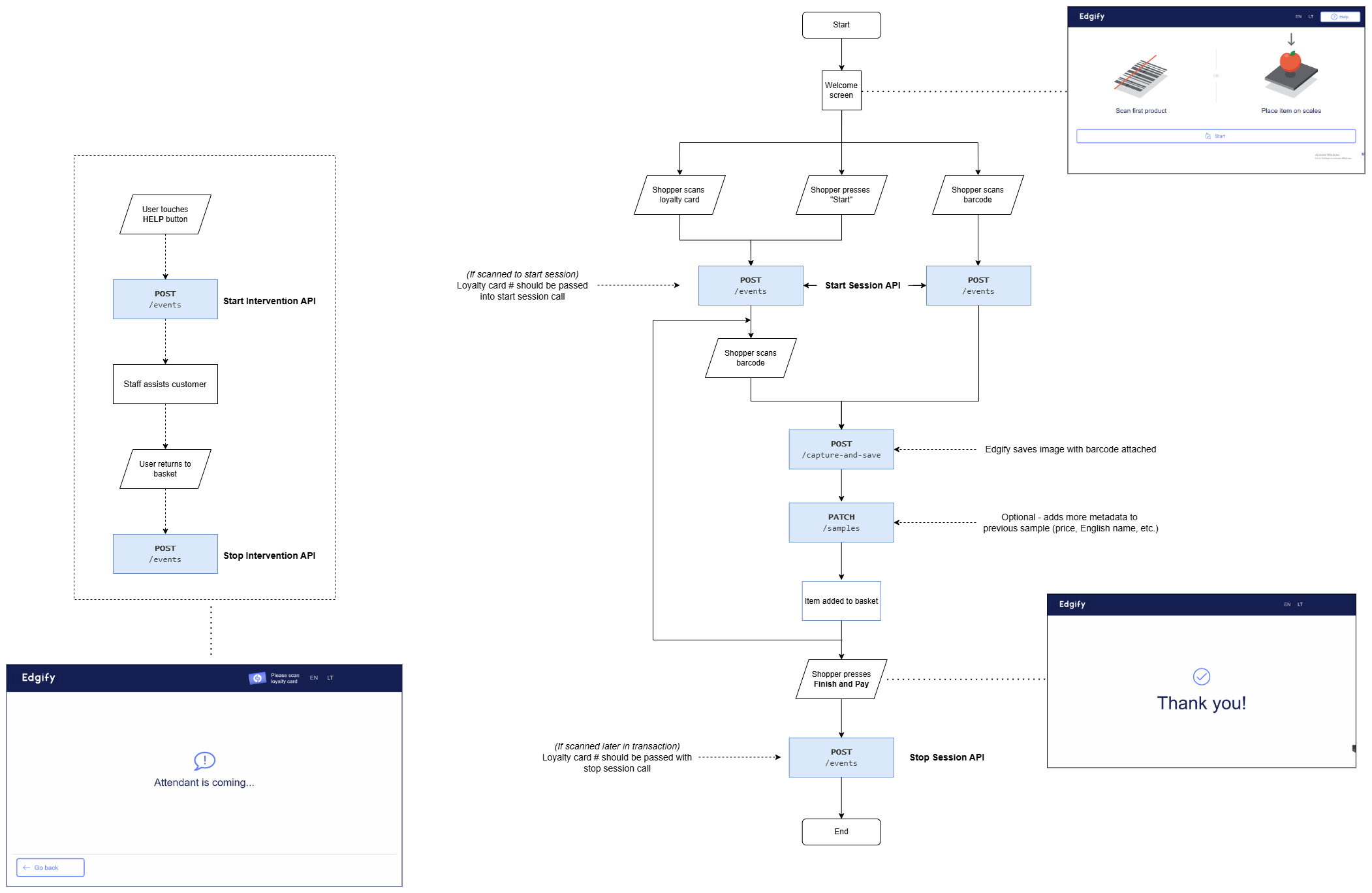
POST /events - Session State Management
POST http://localhost:8090/api/v2/events
This endpoint (with below payloads) should be called upon the beginning and end of each shopper's session. This triggers the Edgify solution to begin and to stop recording a session (video of a single customer transaction).
First interaction: Notifies the beginning of a shopper session.
{
  "name": "StartCustomerSession",
  "transactionId": "12345",
  "shopperId": "<shopper-loyalty-card-id>",
  "assistantId": "<assistant-001>"
}
Notes:
- "transactionId" is optional but recommended. It allows mapping our analytics to the retailers. You can also pass this transaction ID at a later time during the session or the end of the session.
- "shopperId" is optional but recommended. Attaches loyalty card number to a session video, unlocking powerful analytics for repeat offences.
- "assistantId" is optional but recommended. Attaches employee ID to a session video.
This API should be called when the shopper starts interacting with the POS. This endpoint allows the system to start analyzing the video feed from the Edgify camera.
Event: Pay Now: Notifies that the shopper wishes to pay
{
  "name": "PayNow",
  "transactionId": "12345"
}
Notes:
- "transactionId" is not a mandatory field
This API should be called when the shopper opts for the “pay now” option and moves to the tender process/screen. This endpoint enables our Left In Cart product. It will also prevent Edgify from triggering non-scan alerts while the shopper is handling payments.
Event: Last interaction: Marks the end of a shopper session.
{
  "name": "StopCustomerSession",
  "transactionId": "12345"
}
Should be called right before the customer moves to payment, to ensure we don't capture any payment or card information. Tells Edgify to stop analyzing the video feed and saves the session. There is a configurable timeout on the Edgify side in case a StopCustomerSession call is not received.
Event: Start intervention: Notifies the beginning of an attendant intervention
{
  "name": "StartIntervention",
  "transactionId": "12345",
  "assistantId": "<assistant-001>"
}
This API should be called when a store attendant intervenes with the shopper session. Allows the system to identify attendant actions and to not raise loss prevention alerts during.
Event: Stop intervention: Marks the end of a shopper session.
{
  "name": "StopIntervention",
  "transactionId": "12345"
}
This API should be called when a store attendant stops intervening with the shopper session.
POST /capture-and-save
Endpoint
POST http://localhost:8090/api/v2/capture-and-save
Description :
Captures an image from the camera feed and saves it with a unique sample ID. Records essential metadata, including barcode, category, weight, price, etc. Once the sample is successfully written, the Edgify Agent returns a unique sample ID.
Request Example:
{
  "label": "049068930450",
  "captureTrigger": "barcode",
  "labelTrigger": "scannerScale",
  "category": "grocery",
  "family": "beverages",
  "name": "Diet Coke 20oz",
  "count": 1,
  "price": 1.95,
  "totalPrice": 0.95
}
Request Parameters
| Parameter | Explanation | Values (Explanation) |
|---|---|---|
| label | Barcode or SKU | String: (E.g., "4201, 48398882320001") |
| captureTrigger | Mechanism which prompted the capture | Barcode: (Barcode scanner/handheld scanner), ManualEntry: (Picklist/lookup) |
| labelTrigger | Mechanism which triggered the label assignment | Specific barcode capture method (E.g., ScannerScale, HandScanner, ManualEntry) |
| category | Broad classification/grouping for the item (this list is not exhaustive. You may pass custom values which more closely reflect your store estate) | Grocery: (All consumable items), Household, PersonalCare, etc. |
| family | Sub-classification (this list is not exhaustive. You may pass custom values which more closely reflect your store estate) | Dairy, BabyCare, Meat, Alcohol, etc. |
| name | Common name of the item | String: (E.g., "Diet Coke 20oz") |
| count | The quantity of discrete, sellable units for a single transaction event | Integer: (E.g., 1) |
| price | Unit price of the item before discount or adjustments | Float: (E.g., 1.95) |
| totalPrice | Net price after discount or adjustments | Float: (E.g., 0.45) |
Response Parameters
| Parameter | Explanation |
|---|---|
| sampleId | Unique identifier for the stored sample |
Response Example
The response is a JSON object containing a unique sampleId.
{
  "sampleId": "9c9847e6-591b-4f29-a988-922da9e56484"
}
PATCH /sample - Barcode input
PATCH http://localhost:8090/api/v2/samples/{sample_id}
USed to update an existing sample. Fields sent in the payload will be appended to the existing sample. Do not call this endpoint for a sample which doesn't exist.
This PATCH call will not trigger a match-strength response.
Can be called with each barcode scan once the application gets additional metadata it wants to append and pass to Edgify. This endpoint updates the matching sample data using the sample id provided by the previous capture-and-predict response.
Request Example (Barcode):
ANY of the following fields can be passed, all of them are OPTIONAL:
{
  "label": "049068930450",
  "captureTrigger": "barcode",
  "labelTrigger": "scannerScale",
  "category": "grocery",
  "family": "beverages",
  "name": "Diet Coke 20oz",
  "count": 1,
  "price": 1.95,
  "totalPrice": 0.95
}
Response Example (Barcoded items):
Success: 200 - Existing sample was changed
Error codes: 400 - Bad request (e.g. bad format in the body fields)
401 - Unauthorized
404 - Sample does not exist
500 - Internal Server Error
DELETE /sample
DELETE http://localhost:8090/api/v2/samples/{sample_id}
Description : Deletes the passed Sample from the Edgify system. For specialized use cases. Please consult Edgify.
Loss Alerts - Webhook APIs
The Edgify Agent utilizes webhooks to provide real-time alerts to the POS upon the detection of potential loss events. To handle alerts, ensure your application is configured to serve the following:
As part of the integration, ensure your application can:
- Accept requests at the relevant endpoint.
- Parse the incoming JSON payload.
- Validate the payload structure and data types.
- Store or process the relevant information as needed by your application.
- Respond with appropriate HTTP status codes.
- Log errors for troubleshooting
Alert Non-Match
Triggered when a mismatch is detected between the image and the barcode scan (Also known as Ticket/Barcode Switching). The alert provides detailed information about the mismatch, including a base64-encoded image of the scanned item.
POST http://localhost:3050/alert-non-match
Alert example: The Edgify Agent will send a webhook with the following JSON payload structure:
{
  "groupId": "b613a9b9-ff88-4949-9110-67232af9df93",
  "label": "834782000381",
  "name": "Kool-Aid Tropical",
  "capturedAt": "2024-05-16T15:04:05.000Z",
  "predictedLabel": "9923810024436",
  "predictedName": "Rib-eye Steak 20oz",
  "image": "<base64 image>"
}
Alert Non-Scan:
Triggered when an item enters the bagging area without a corresponding scan event. The alert provides information about the non-scan event, including 1-3 base64-encoded images tracking the item.
POST http://localhost:3050/alert-non-scan
Alert example: The Edgify Agent will send a webhook with the following JSON payload structure:
{
  "groupId": "b613a9b9-ff88-4949-9110-67232af9df94",
  "capturedAt": "2024-05-16T15:04:05.000Z",
  "images": ["<base64 image>","<base64 image>"],
  "representativeImg": "<base64 image>"
}
Alert Left-in-Cart (LIC):
Notifies the POS of any unscanned items in the shopping cart when the customer moves to complete the transaction. Works with baskets and carts (trolleys). Differs from the previous Webhook alerts in that it is a synchronous, request-response rather than an alert.
The POS should call the below API endpoint when the customer moves to tender screen. Usually triggered by a "Pay Now" or "Finish and Pay" button.
POST http://localhost:8090/api/v2/detect-cart-loss
Request Example
{
  "name": "PayNow",
  "transactionId": "12345"
}
- TransactionID is optional
Response Example
The response is a JSON array containing a unique ID and an image highlighting the unscanned items.
[
  {
  "sampleId": "<sample UUID>",
  "type": "LEFT_IN_CART",
  "image": "<base64-encoded image>",
  "capturedAt": "<ISO 8601 timestamp>",
  "sessionId": "<Current session UUID>"
  }
]
Validating the Alert with a Response
Feedback from each loss alert enables the Edgify solution to continuously improve and maintain high performance. You can send feedback using the below response formats:
POST http://localhost:8090/api/v2/events
Response Types
| Event Type | Description |
|---|---|
| Assistant Confirmed | Store assistant confirms the loss event |
| Assistant Rejected | Store assistant rejects the loss event |
| Shopper Confirmed | Shopper confirms the loss event |
| Shopper Rejected | Shopper rejects the loss event |
These responses will be tied to some form of user input, such as on-screen buttons which enable the customer or staff to clear the alerts.
Response Payload Format - Non-scan and Non-match
The system must send the response payload in the following format:
Response from Assistant screens
{
  "name": "Assistant Confirmed",
  "groupId": "<the groupId received in the alert body>",
  "assistantId": "<assistant-001>"
}
Response from Shopper screens
{
  "name": "Shopper Confirmed",
  "groupId": "<the groupId received in the alert body>",
  "shopperId": "<shopper-loyalty-card-id>"
}
assistantID and shopperID are optional
Response Payload Format - Left in Cart
Slightly different to the Non-scan/match responses, as LIC uses sampleID rather than groupID:
Response from Assistant screens
{
  "name": "Assistant Confirmed",
  "sampleId": "<the sampleID received in the alert body>",
  "assistantId": "<assistant-001>"
}
Response from Shopper screens
{
  "name": "Shopper Confirmed",
  "sampleId": "<the groupId received in the alert body>",
  "shopperId": "<shopper-loyalty-card-id>"
}
assistantID and shopperID are optional
Notes:
- Ensure your application can handle and process base64 encoded images.
- assistantId or shopperId are not mandatory fields.
Webhooks can be enabled / disabled from within the Edgify Agent config
Final Checks
Return to https://docs.edgify.ai/docs/Integration/ and ensure you've implemented all important configurations.