Edgify Tier 1 Guide
Last Updated by Daniel Marder on November 13th, 2024.
Welcome to Edgify’s guide on how to perform an initial troubleshooting and how to raise a support ticket. Below you will find some details of preliminary checks to make in order to verify that the issue is with the Edgify software, as well as information on how to raise a ticket with our support team and what information to include.
If the issue occurs with only certain items while others work fine, please raise a support ticket.
If the problem persists across all items, follow the steps in the guide below:
Step 1 - Preliminary Checks
Firstly, there are a few checks to run to determine if the issue is related to the Edgify components.
When no predictions appear on screen
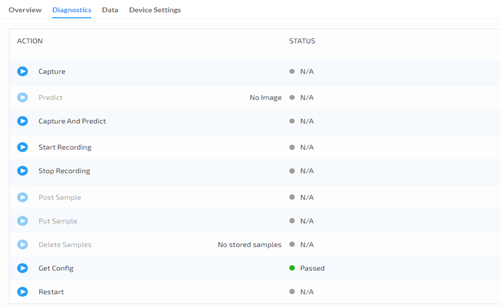
You can use the Overview and Diagnostics tabs on the device page in the dashboard to check if the agent is running and if the capture and predict functionalities are working.
In the Overview tab, check the device state. If it’s ready, then that confirms that there’s not an issue with your network connection and that the device is running. If it’s down or disconnected, then check that the hardware is connected and working as expected and that your network settings are correct.
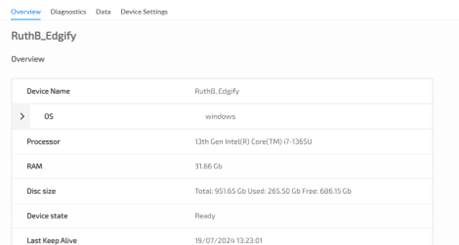
If the device is down after ensuring that your network settings are correct and there is no software preventing the agent from running. Please also check that the agent is running - Below you’ll find details on how to do this on Windows and Linux.
Windows devices
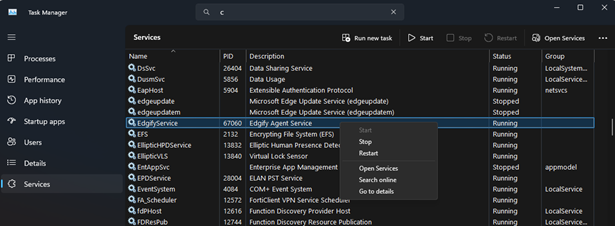
Check if the Edgify Agent is running in the Task Manager and try restarting it.
Linux Devices
Run the command sudo docker ps to see if the docker container is running.
user@user-EdgifyAgentUbuntu:~$ sudo docker ps
[s
udo] password for user:
CONTAINER ID   IMAGE                        COMMAND                  CREATED       STATUS       PORTS     NAMES
ea1486dd603b   edgify/edgify-agent:2.14.2   "sh -c ./start.sh"       4 weeks ago   Up 2 hours             edgify-agent
If the edgify-agent container is running, then run the command sudo docker restart edgify-agent
If the edgify-agent container is not running, then run the command sudo docker start edgify-agent
If the Device State is Ready
If the Device State is Ready, go to the diagnostics tab, and click on Capture and Predict. If there is no image returned, check that your camera is set up correctly and that it’s using the correct device in the device settings. If the problem you’re seeing is that the predictions aren’t being returned on the UI, check that the device application isn’t in silent mode. If you’ve performed these checks and ensured everything is set up correctly on the device, please raise a ticket.
Hardware
Please check if the root cause could be due to a hardware issue (scales/SCO, camera, electricity):
- Is the device running? Check that the Edgify Agent service is running using the Task Manager
- Are there any other applications using the device that could be preventing the agent from using the hardware (e.g. AntiVirus)?
- Is the hardware working correctly? You can verify the camera is working using an online webcam tester or a 3rd party application. You can also check in the Device Manager.
- Does restarting the device have any effect?
Device Application
Please check if the root cause could be due to the device application:
- Are there any changes in the behavior of the device application since installing/updating the Edgify Agent?
- Is the device in the correct mode? It could be that it’s not showing predictions because the device application is in Silent mode
- Is the device application responsive?
- Are there any symptoms that aren’t related to the AI component?
Network Troubleshooting
Please check that your device’s network is working as expected:
- Can you see that the device is up within your local network? Can you ping/ssh to it?
- Are you able to Telnet to the dashboard on port 443? Run the following command to verify: Telnet dashboard.production.edgify.ai 443
- If you have a hybrid/centralized distribution, are you able to Telnet to the Edgibox? Run the following command to verify: Telnet [Edgibox I.P] 8090
- Is the device showing as connected in the dashboard?
Agent checks
Please run the following checks relating to the agent:
- Do you have the latest version of the agent installed?
- Do you see any improvement after restarting the agent?
- Is the issue present on all devices?
Step 2 - Raising a support ticket with Edgify
After performing the preliminary checks above to confirm that the issue is likely with the Edgify component, please raise a ticket by contacting the support team at help@edgify.ai with the following information and format.
Information to include
- Description of the issue including as much detail as possible, e.g. symptoms, error messages
- The details of any troubleshooting steps you’ve taken, e.g. the preliminary checks above including the output of any commands you’ve run
- Current agent version number and, if applicable, the version number of where it was last working
- Steps to reproduce the issue if possible
- Frequency of the issue - consistent, one off occurrence, intermittent (do you notice any trends as to when it occurs?)
- Does the issue occur on all of your devices or just some? If just some, are you aware of any differences between them?
- Screenshots / Videos
- Logs - If you do have logs from a time/device where it was working as well, attach them too if possible
- Any previously raised tickets that may be relevant
Ticket Template
Hi Support Team,
I would like to raise an issue at our store.
Below are the details:
Affected Devices / Stores: [List the impacted devices]
Issue Summary: [Brief description of the problem, e.g., "No predictions displayed on the self-service scales."]
Steps Taken: [Describe the actions already taken to troubleshoot the issue.]
Attachments: [Logs/screenshots attached if applicable.]
Best Regards,
<Your name and role>