Barcodeless Item Recognition (BLIR) on Self Service Scales (SSS) - Integration Guide
Solution Description
This document outlines the integration guide for integrating with Edgify agent via REST APIs. The Scale UI application (“UI Application”) interacts with the Edgify Agent (“Agent”) via 2 main REST APIs: Capture & Predict and Put Sample (see below). The Edgify Agent can be installed on a Windows device, in which it will run as a service or on Linux devices in a Docker container. The agent enables devices to execute real-time predictions and obtain the certainty of these predictions. The agent is capable of detecting false selections and initiating intervention procedures via the scale's user interface and attendant application.
Video Examples
You can see here a few examples of different vendors integrating with our software:
- Bizerba - Scan & Go
- Bizerba - Smart Scale False Selection of Cheap Produce & High Value Items
- DIGI - Auto Print
The following diagram outlines the optional intervention flows:
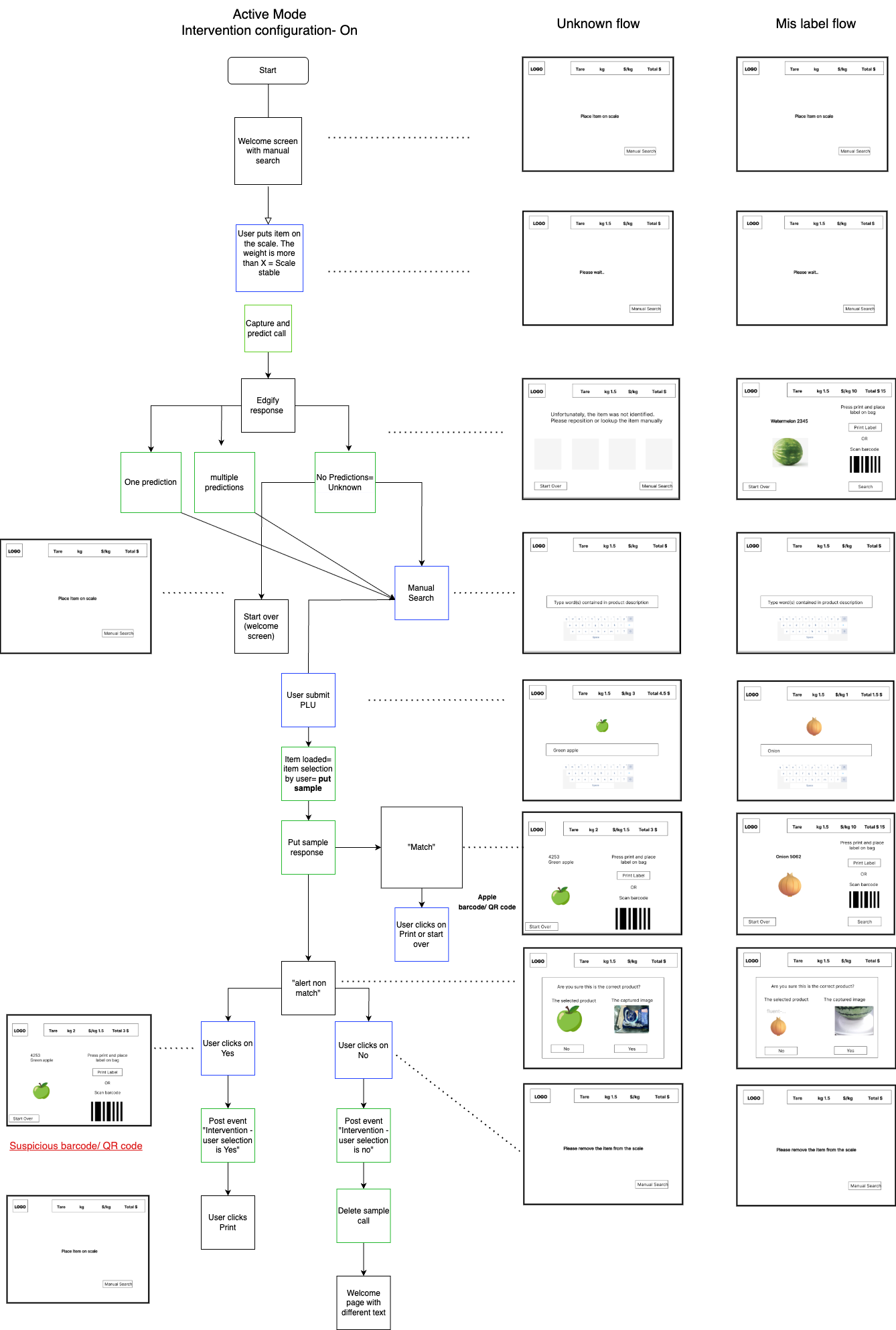
API Flow
The calls need to be authenticated using “Digest Authentication” *Username and Password should be in a config file and will change between customers.
POST /events - Start Interaction
POST http://localhost:8090/api/v2/events
Description:
This endpoint should be called upon the beginning of each Shopper interaction before placing an item on the scale. It enables the system to calculate the sample duration for cases where shoppers interacting with the scale and search for a PLU prior to placing the item on it.
Body Example:
{
  "name": "StartInteraction"
}
The StartInteraction returns a SampleId value.
StartInteraction Response Example:
{
  "sampleId": "UUID"
}
Capture & Predict
POST http://localhost:8090/api/v2/capture-and-predict
The Agent captures an image and runs a prediction on it, (Image is in base64 text). In The Body you will need to add captureTrigger, family and sampleId parameters. Family and sampleId are not mandatory.
Body Example:
{
  "captureTrigger": "auto-scale",
  "sampleId": "UUID"
}
Parameters Explanation:
-
“captureTrigger” informs Edgify what user experience triggered the call to this Edgify prediction call.
-
sampleId- Is relevant if the preceding call was "start interaction," and we have sent back the response.
The call provides an output with:
- sampleId
- image
- certain(true/false)
- the predictions and confidence
“Certain” field
The Certain parameter is related to a use case where you would want to use "AUTO PRINT" of the sticker. Auto Print is a situation where you would want an automatic flow to happen when the prediction is certain above a defined threshold. For example, whenever Edgify predicts an item by above 99% print the label. In the Edgify agent configuration there is a parameter to configure what would be the threshold to output certain:true (Example in above previous Print Screen).
Put Sample
PUT http://localhost:8090/api/v2/samples/{sample_id}
Description :
Saves the sampleId and Image with the chosen label, after the customer has chosen the product. Same as the Capture & Predict API, The call needs to be authenticated using “Digest Authentication” *Username and Password should be in a config file and will change between customers
Each prediction has a unique sample_id, use that id in the api request In the request body, you will need to add the image from the “Capture & Predict” API and add to it the Label in addition to some additional information (family, category, labelTrigger, captureTrigger)
-
“Label” - Is the Product PLU. This will be part of the model and will be recommended in the output prediction
-
“labelTrigger”- (previously was called “Source”) is the user experience with which the user decided to choose/confirm the label selection. Example values:
- ManualLookup
- EdgifyPrediction
- Auto print
-
"captureTrigger" - (Optional) Should be the value that was passed in the captureTrigger parameter for the prediction object which this ground truth sample is related to.
-
"category" - (optional) Should be the catalog hierarchy for which this SKU belongs within the retailer catalog DB. Example: “Bakery” if the SKU is a baked item. This parameter is not related to user-experience. It's supposed to come based on the real relation of the SKU within the retailer’s products catalog (if possible).
-
"imgSource" - (optional) the name of the device capturing the image
-
"Image": the image itself (a Base64-encoded jpeg image received from the capture-and-predict call earlier)
Body Examples:
{
  "label": "tomato",
  "labelTrigger": "ManualLookup",
  "captureTrigger": "auto-scale",
  "category": "vegetables",
  "groupId": "b932de54-41ca-4f5a-99d5-b9db779f8888",
  "imgSource": "ip-camera-SCO-1",
  "image": "/9j/4AAQSkZJRgABAQAAAQABAAD/2wBDAAMCAgICAgMCAgIDAwMDBAYEBAQEBAgGBgUGCQgKCgkICQkKDA8MCgsOCwkJDRENDg8QEBEQCgwSExIQEw8QEBD/2wBDAQMDAwQDBAgEBAgQCwkLEBAQEBAQEBAQEBAQEBAQEBAQEBAQEBAQEBAQEBAQEBAQEBAQEBAQEBAQEBAQEBAQEBD/wAARCAC6ALgDASIAAhEBAxEB/8QAHQAAAQQDAQEAAAAAAAAAA……………………………………………ZCkprW7eUfohGhHls//Z",
  "name": "Banana",
  "price": 0.95,
  "weight": 1.5,
  "count": 1,
  "totalPrice": 1.425
}
Put Sample Response - Match Strength
The PUT Sample call returns a matchStrength value indicating whether this sample does not match the label provided.
Response Object Example:
{
    "matchStrength": "alert-non-match"
}
The possible values for the matchStrength are as follows:
- match - The label provided matches the image
- alert-non-match - Edgify is confident that the label does not match, prompting an alert to be displayed on the screen and potentially triggering attendant verification.
- unknown - Edgify was not able to confirm or alert
POST events - Stop Interaction
POST http://localhost:8090/api/v2/events
Description:
The following endpoints should be called upon the shopper's selection. They enable the system to measure the impact of the first level of intervention.
POST Event/non-match-continue
{
    "name": "non-match-continue" ,
    "sampleId": "UUID",

}
POST Event/non-match-startover
{
    "name": "non-match-startover" ,
    "sampleId": "UUID",
}
The following endpoints should be called upon the attendant's selection. They enable the system to measure the impact of the second level of intervention.
POST Event/attendant-confirmed
{
    "name": "attendant-confirmed" ,
    "sampleId": "UUID",
}
POST Event/attendant-rejected
{
    "name": "attendant-rejected" ,
    "sampleId": "UUID",
}
Delete Sample
DELETE http://localhost:8090/api/v2/samples/{sample_id}
Description :
Deletes the passed Sample from the Edgify system.
- For specialized use cases. Please consult your Customer Success Team.
Important Logs
Make sure you write to the self service scales application log upon each call to Edgify's APIs. Include time stamp and the meta data sent and received.
Documentation
Please provide basic documentation or a short video showing how to use / navigate the integration and staff logins or backend menus included in your application software.
Testing Integration of Self Service Scales
After integration we do recommend jumping on a call with Edgify Sales Engineer (SE) to test the integration.
A few use cases should be tested after integration:
- Edgify returns 1 item
- Edgify returns multiple items
- Edgify returns “Unknown”
- Edgify Certain: true - (If this flow was implemented)
- Edgify is down (no response)
- Toggle Silent/Active Mode
Note: For developing & testing purposes Edgify can change the configuration to provide any of the above flows every time by changing the agent parameters.
Data Collection Flow
Edgify recommends you Implement a flow for collecting product image samples and SKUs for new Products In order to be able to add new SKUs to the system without having to wait for customers actually buying each item 500 times. You might want to add to your client software the capability to capture images of new items faster. Hence, it's important that the client software will implement a feature for capturing multiple images and ground truth rapidly. For each image capture, the client software should call the /predict API to capture an image and then call the /sample API with the SKU and image id received from the /predict API call.