Data Collection Guide
Important Guidelines
- Before starting the data collection, consult with Edgify to make sure that your installation is configured correctly.
- More good quality images and a range of examples for the same class will produce an exponentially stronger model.
- For a model of 5-10 classes you must collect 300 images for each class across 5 different examples of that class.
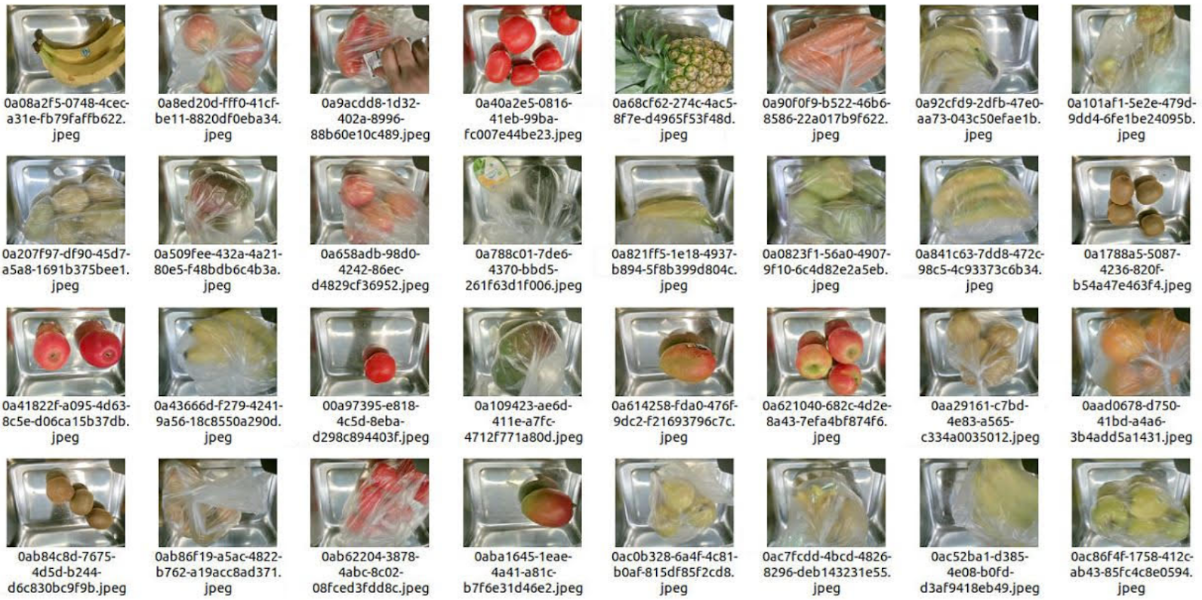
- Edgify includes every visible element of each image when making predictions (background environment, noise, etc.) Ensure you collect images under the same conditions as demos will occur. Including:
- Camera position
- Light intensity
- Bags / nets
- Fresh produce ripeness
- Scale pre-built lights state (on / off)
- Every single image should be distinct from the last. If Edgify is trained on 300 images of the same banana in the same position, the model will be weak and this process must be repeated.
Example of Good Data
Data Collection
After Edgify installation and Camera calibration, you are ready to collect data for training. The Edgify Data Collector tool is accessible via Chrome/Firefox browser at: http://localhost:3000/data-collector on the device on which you installed the Edgify Agent.
(example: if Edgify is running on a machine with IP 192.168.1.1, instead of localhost:3000 -> use 192.168.1.1:3000 )
Data Collection Steps
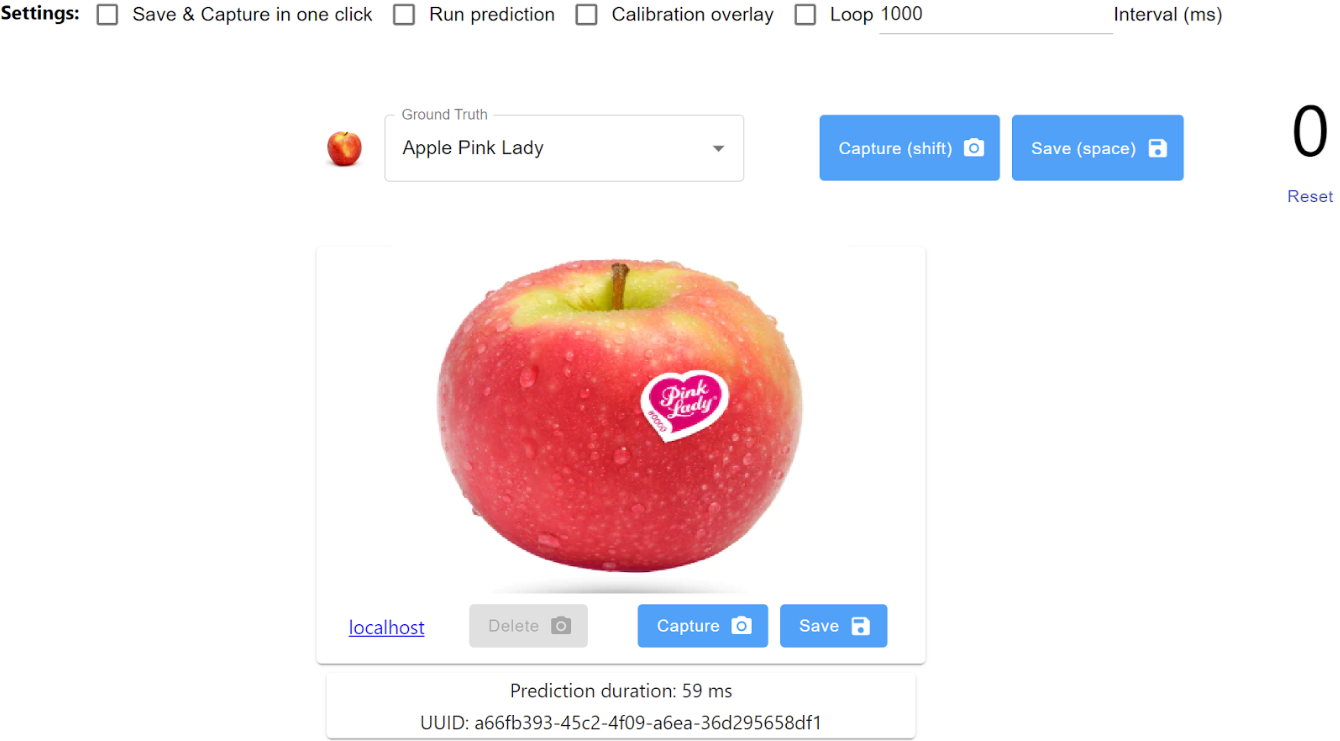
- Place your chosen barcodeless item on the platter
- Pick the corresponding Ground Truth from the drop down list (if the item does not exist, pick a distinct item and relabel it later)
- Select “Save & Capture in one click” and then click “Capture” or press the Shift key).
- Verify Counter change on top right
- To simulate customer buying behavior, Remove item(s) and repeat steps 1-5 using varying numbers of examples and positionings.
- No need to change Ground Truth when collecting for the same item.
Relabelling and Deleting Captured Images
Images should be free of noise such as hands, changing backgrounds or environmental conditions. Once you have finished collecting images for each class, check the data management tool and browse through the images, deleting those which contain noise (noise will harm your model).
To connect to the data management tool: http://localhost:3000/data-management
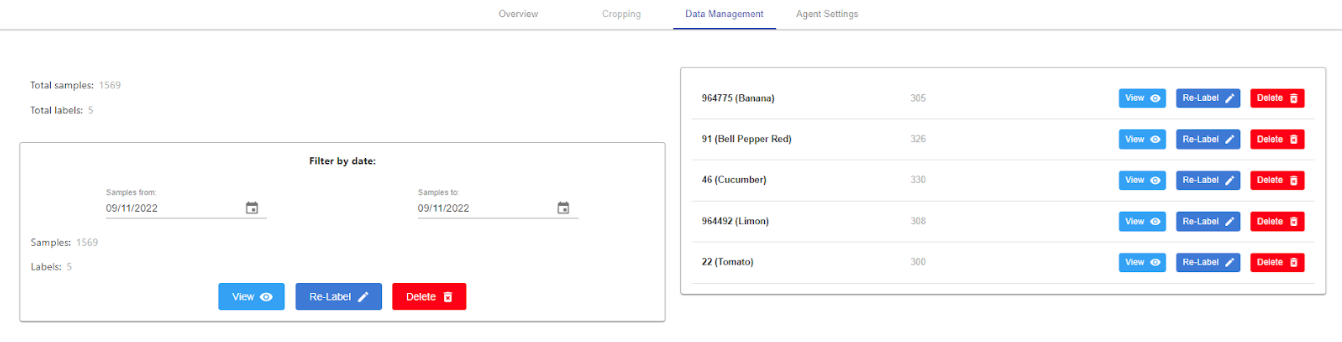
Delete / Re-Label by date
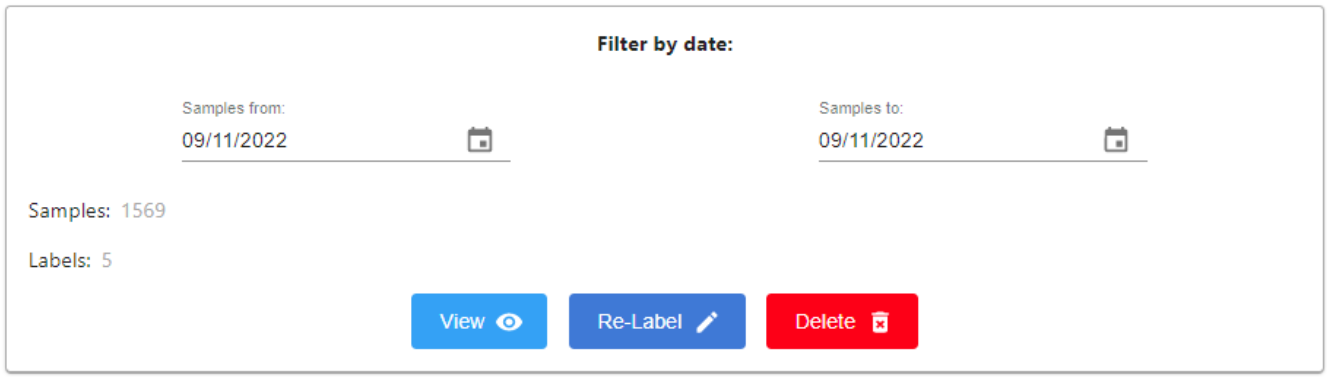
Steps
- Choose the data collection dates of the images you wish to delete.
- If you wish to delete ALL data from those dates press Delete.
- If you wish to Re-Label ALL data from those dates press Re-Label.
- If you wish to manually delete images press View and delete the relevant images.
Delete / Re-Label by label
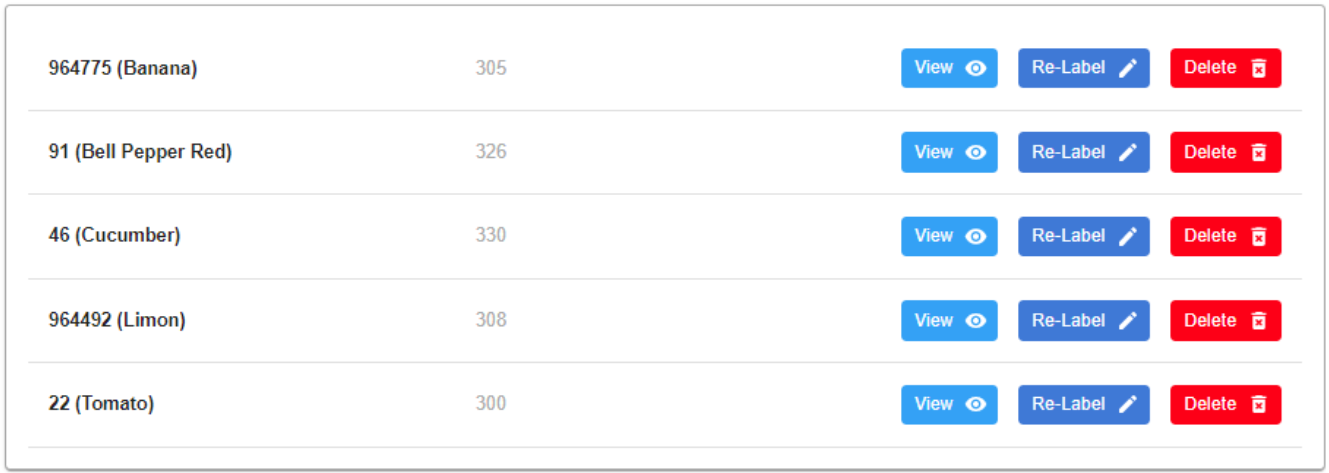
Steps
- Choose the label of the images you wish to delete.
- If you wish to delete ALL data from that label press Delete.
- If you wish to Re-Label ALL data from that label press Re-Label.
- If you wish to Manually delete images press View and delete the relevant images.
The labels you see here will be output by Edgify when making predictions, so ensure you rename these appropriately.
Glossary
Class - Distinct PLU item (i.e. Banana - 9920, or Almond Croissant - 2330)
Data Collection - Collecting labelled images of produce in a manner simulating consumer shopping behavior.
Data Collector - Edgify tool which allows rapid capturing and storing of labelled images. Comes installed with agent.
Training - A process initiated and managed by Edgify, whereby the Edgify solution processes images and produces a model. Each training produces a new, discrete model.
Model - An output of the Edgify solution, trained to recognize objects in images. Can be deployed to multiple devices.
Sample - Each distinct item within a class (2 bananas are 2 samples of the same class)
Label - The name applied to an image (PLU)